







Use this guide to connect Apple TV Gen 1, 2, or 3 to Remote Control for TV, the iPhone and iPad TV remote app.
Before You Start
To pair the app with your Apple TV (Gen 1, 2, or 3), you will need a physical Apple TV remote.
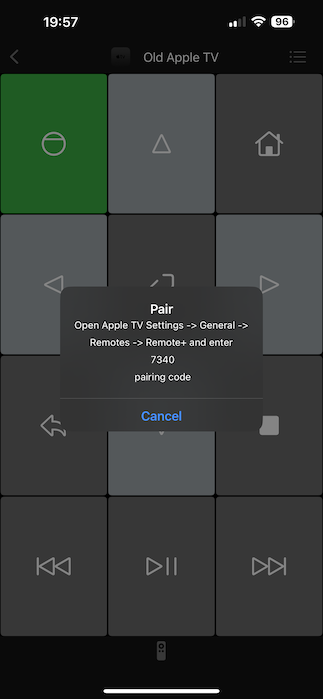
How to Connect Apple TV Gen 1, 2, or 3
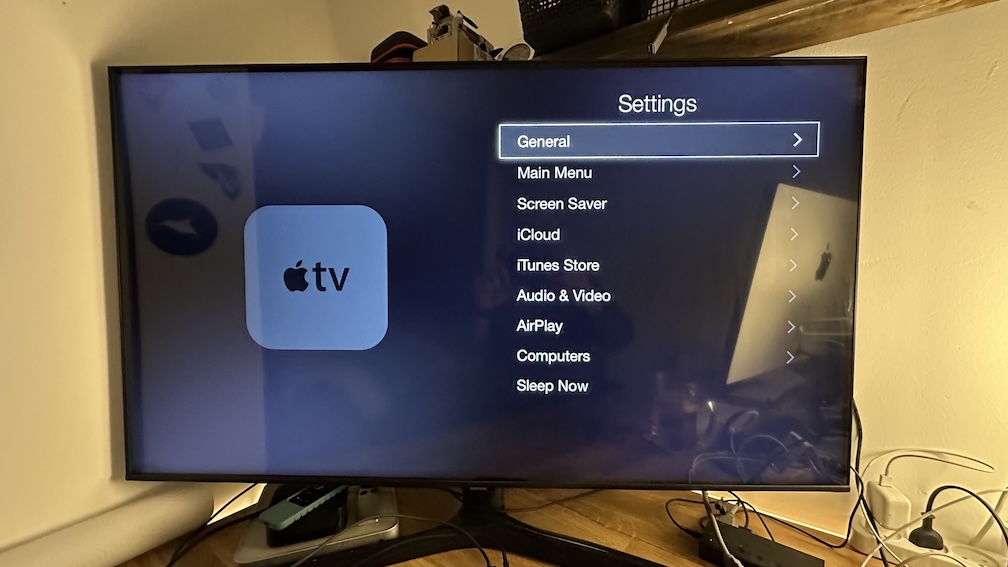
Open Apple TV Settings.
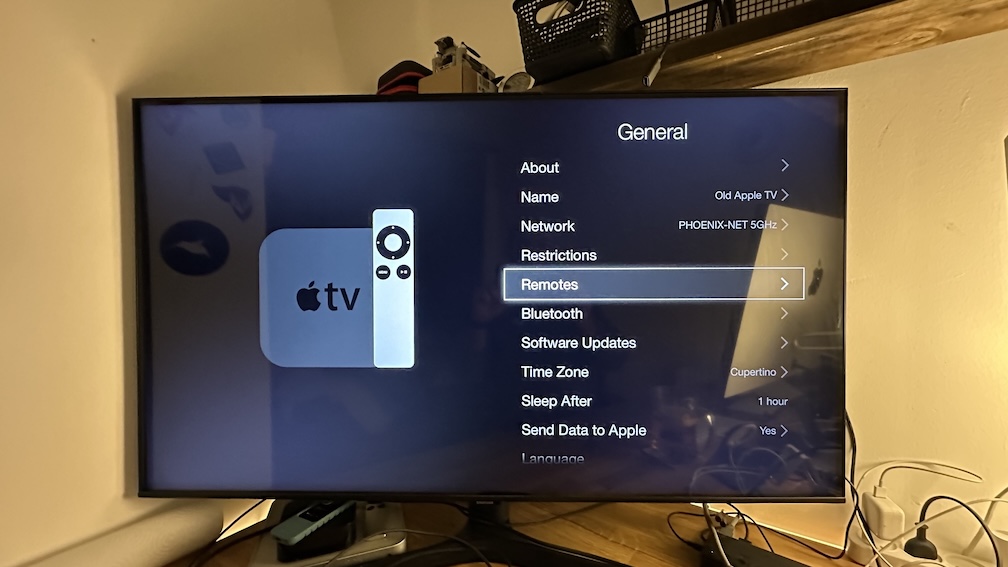
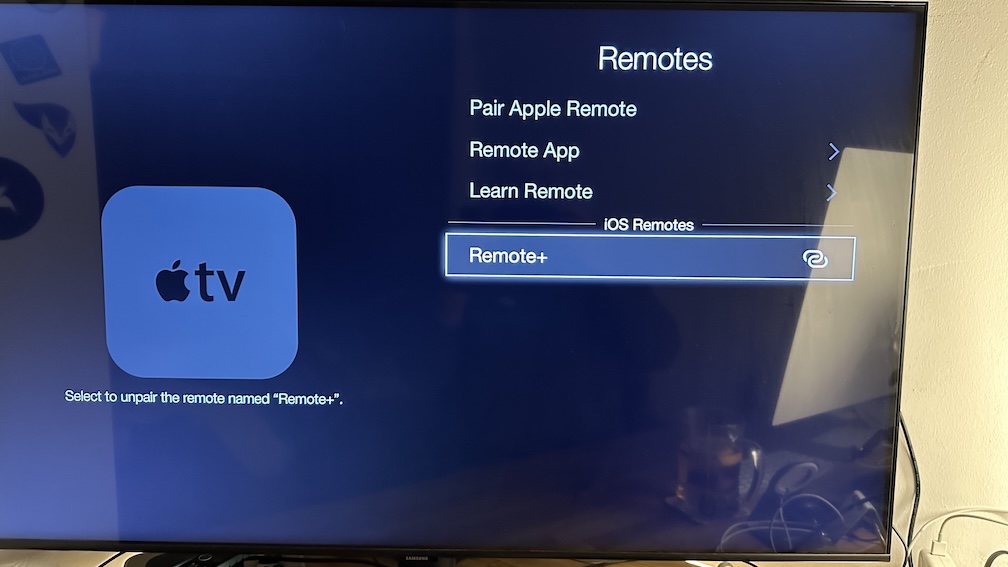
Open Remotes.
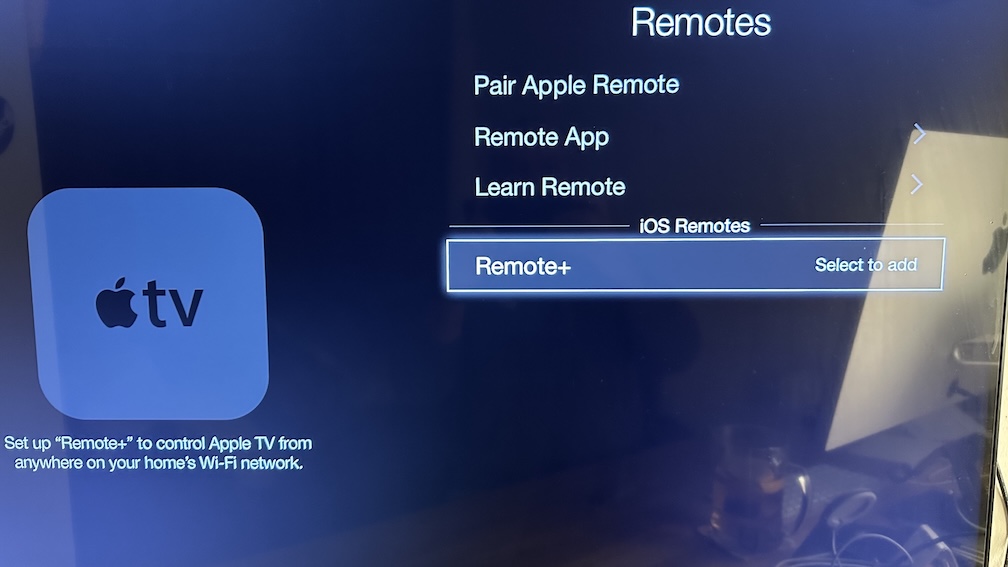
Select TV Remote or Remote+ (depending on the app you are using).
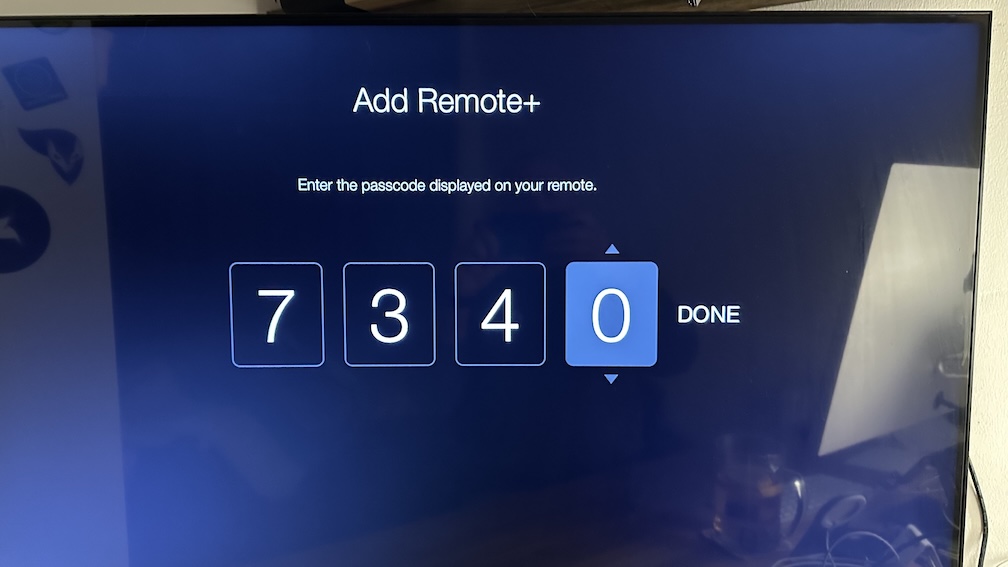
Enter the PIN Code.
The app should be paired with your Apple TV.
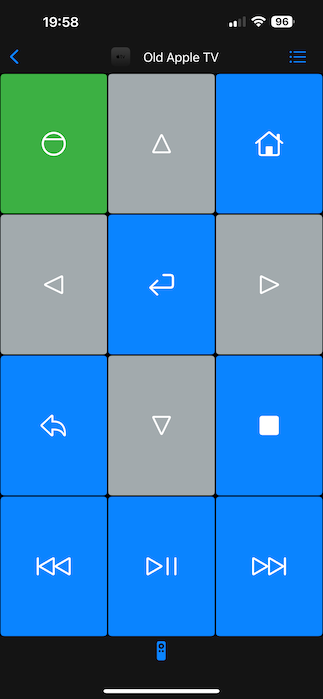
Now you should be able to control your Apple TV using the app.
After the First Legacy Pairing
- Finish the first pairing on iPhone or iPad with the physical Apple TV remote before trying any other control surface.
- The macOS app can reuse the same saved legacy Apple TV from your Mac for basic keypad control on the same network.
- Siri Shortcuts and App Intents are best used for supported remote-key actions after the legacy Apple TV has already been saved in the main app.
- If you want to try Apple Watch control, do it only after the first iPhone or iPad pairing succeeds. Legacy Apple TV coverage is narrower than Apple TV HD and Apple TV 4K.
Common Apple TV Gen 1, 2, 3 Connection Problems
If you cannot connect to your TV
- Make sure you are using the legacy Apple TV guide, not the Apple TV HD or Apple TV 4K guide.
- Confirm that you are selecting the correct app entry in Apple TV > Settings > General > Remotes.
- Repeat the code entry if the pairing code expires.
Apple TV Gen 1, 2, 3 FAQ
Do I need the physical Apple TV remote?
Yes. A physical Apple TV remote is required for the legacy pairing flow on Apple TV Gen 1, 2, and 3.
Should I pair legacy Apple TV on iPhone or iPad first before using Mac, Apple Watch, or Siri?
Yes. For Apple TV Gen 1, 2, and 3, complete the first pairing on iPhone or iPad with the physical remote first, then use the saved device from Mac, Siri, and any follow-up watch workflows.